
Is Zip VPN free?
Yes. There is no paid tier, no trial and nothing to unlock later. The app is supported by ads, which is what pays for the servers.
Free locations come and go. Most apps hand you an error and let you pick again. Zip VPN keeps the fastest ones queued up, and when one does not answer it moves to the next by itself, so the tap you made is the only one you make.
Android 7.0 and newer, version 1.0.17, published by Qikks Studio

Tap Disconnect to run it again.
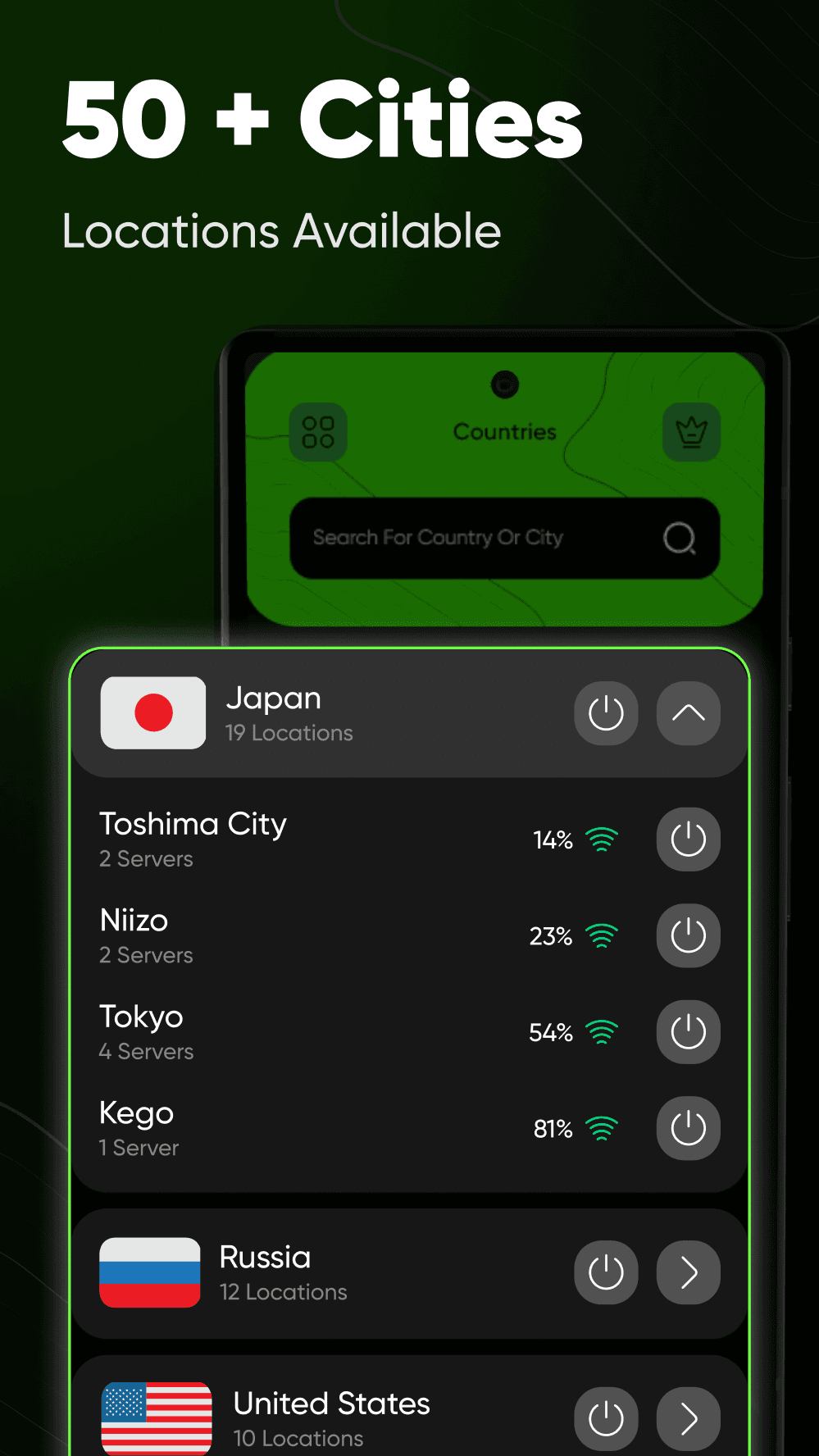
Best Location sits at the top of the list and needs nothing from you. Or open Countries, type a place, and take it yourself. The whole country comes with the choice, not a single machine inside it.
Search for a country or cityType as much of it as you can remember. The list narrows as you go.
Star the ones you keep coming back toFavourites and Recently Connected sit above everything else, so the place you used yesterday is the first thing you see.
Sort it the way you thinkBy response time, by speed, or plain alphabetical order. Each country shows how many locations it holds, and each city how many servers sit behind it.
Countries
Free Locations (52)
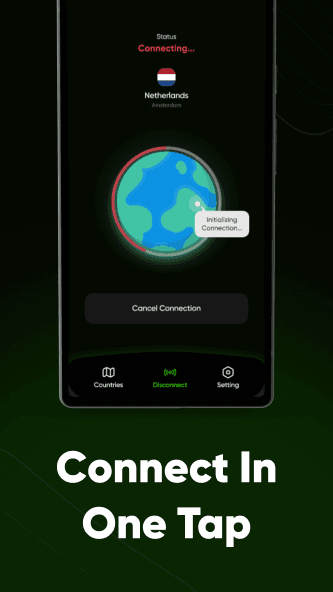
A free location that worked this morning may be gone by lunchtime. Rather than pin you to one and fail, Zip VPN holds the country’s locations in order of how fast they answered, and works through them until one lets you in. You see a connection, not a queue.
The one that failed drops to the back for next time, so you stop meeting it first. And if you asked for Best Location rather than a country, the queue is every location we have, everywhere.
Connected on the third. You tapped once.
This is where free VPNs usually stop working. Mobile networks are stricter than home Wi-Fi about what they let through, and a lot of the locations that connect instantly on Wi-Fi never answer at all on a phone signal.
Zip VPN notices which kind of network you are on and asks for the locations that work there. Walk out of the house mid-session and it notices the switch and refreshes the list rather than serving you a stale one.
Nothing to set. The app works out which list to ask for.
Six categories of settings, each one short enough to read in a sitting. The defaults are chosen so that the app is safe out of the box and nothing surprising happens on first run.
Blocks all internet traffic if the VPN disconnects unexpectedly, so nothing slips out between one server and the next.
SecurityHolds back the traffic that would otherwise take a route around the tunnel. On by default.
SecurityPick the apps that should carry on using your normal connection. Your bank app can stay home while everything else travels.
SecurityIf an established session drops, the app brings it back rather than leaving you unprotected and unaware.
ConnectionConnect to the best server the moment the app opens. Off by default, because it should be your decision.
ConnectionFive separate switches: connecting, connected, disconnected, errors, and a master over all of them.
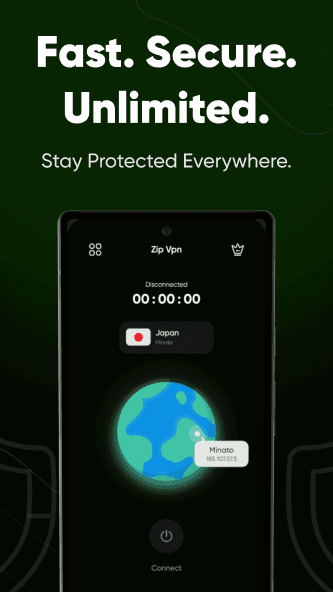
NotificationsOnce the app has run once, you rarely need to open it again. Pull down the shade and the tile is there; leave the widget on a home screen and it shows whether you are connected and turns it off in a tap.
Come back to the app mid-session and it finds the session already running and picks the clock up where it was, rather than dropping you on a blank home screen.
Sits with Wi-Fi and Bluetooth, and reads Connected or Disconnected underneath. Tapping it while connected drops the tunnel there and then.
The same toggle, kept where you can see it. It updates itself as the connection changes.
There is no light theme, and that is on purpose: a VPN is a thing you glance at, usually in the dark, and one bright green against near-black tells you the state from across a room.
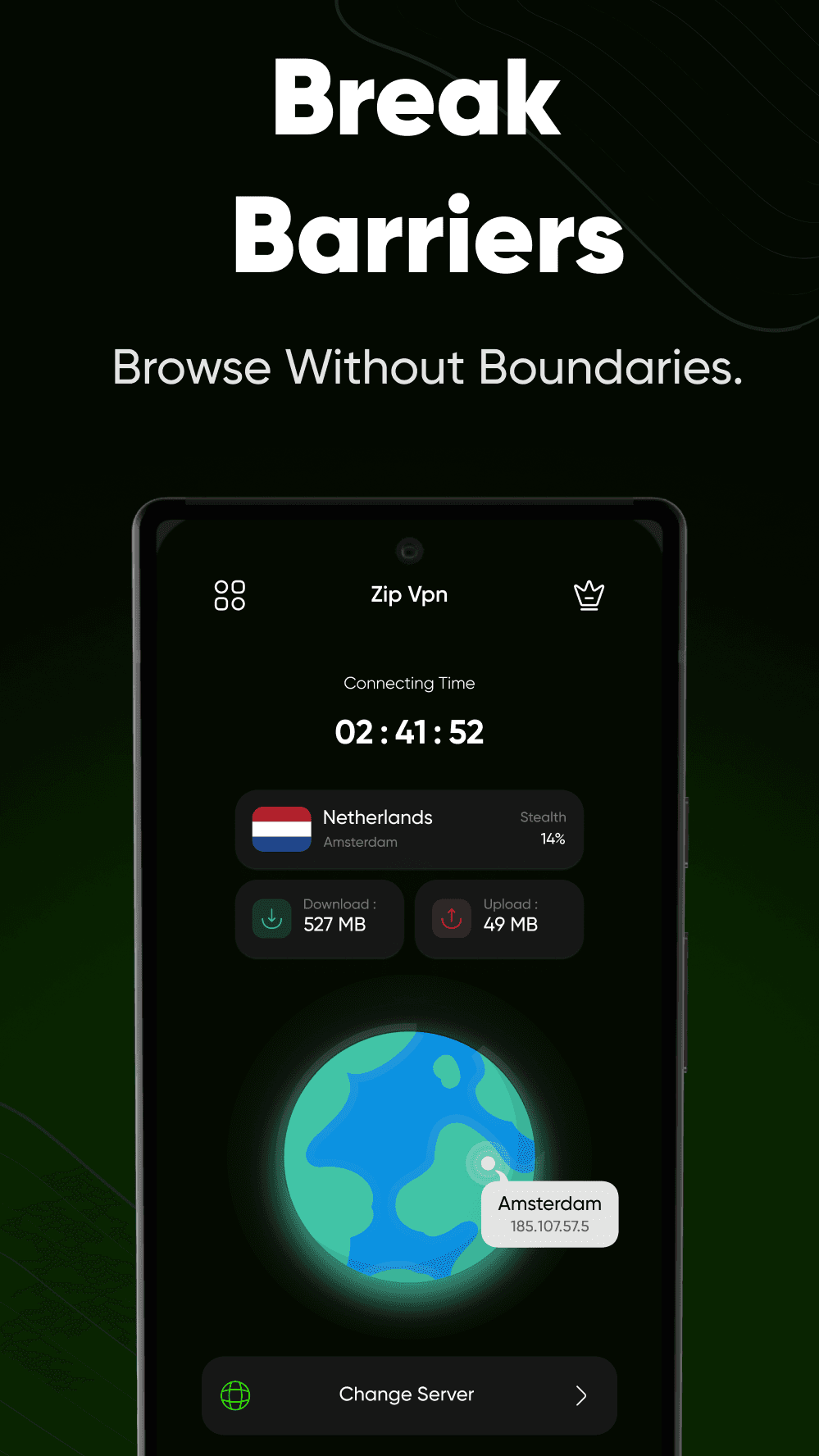
Grouped the way the app groups itself, with the count beside each group so you can see how deep it goes before you install.
The things people ask most often, answered plainly. Anything else, the policies at the bottom go into detail.
Yes. There is no paid tier, no trial and nothing to unlock later. The app is supported by ads, which is what pays for the servers.
No. There is no sign-up, no email address and no password. Install it, open it, tap connect.
Android 7.0 and anything newer, on phones and tablets.
Turn on Kill Switch and all internet traffic is blocked until the tunnel is back, so nothing leaves the phone in the gap. Auto-Reconnect, which is on by default, brings the session back on its own.
Yes. Split Tunneling lists everything installed, and the apps you pick carry on using your normal connection while everything else goes through the tunnel.
Yes. There is a Quick Settings tile and a home-screen widget, and both toggle the tunnel in one tap. Connecting for the first time still needs the app, because Android asks you to grant the VPN permission itself.
Nothing to unlock, nothing to cancel. Install it, tap once, and the app does the rest of the work.